Resize images: How it works and what to consider
By teamnext Editorial Team
• downscaling
• compression
Both methods are often combined. The result is a file with fewer pixels and additional compression.
Two approaches
1. Downscaling
Downscaling reduces width and height. This decreases the number of pixels.
2. Compression
Compression stores the file more efficiently. Two types exist:
• lossless compression
• lossy compression
In practice, lossy compression is common because it produces much smaller files.
Reducing file size without quality loss
Lossless reduction is possible when a format supports lossless compression. In that case, file size is reduced without losing image information.
In everyday usage, “without quality loss” often means “without visible quality loss”. In that case, lossy compression may still be acceptable and can reduce file size significantly.
Formats suitable for lossless reduction
Two key formats that support lossless compression are:
• TIFF
• PNG
Even after lossless compression, these files are often large compared to JPEG, which is the most common photo format.
Note:
• JPEG and JPG refer to the same format
• JPG is a legacy file extension convention from older Windows systems
Reducing pixel dimensions
For most use cases, a full resolution image is not required. For websites, previews, or email attachments, reducing pixel dimensions is often the first step. This is called downscaling.
The tools depend on device and operating system. The next section outlines a common Windows option.
Reducing dimensions with Microsoft Paint
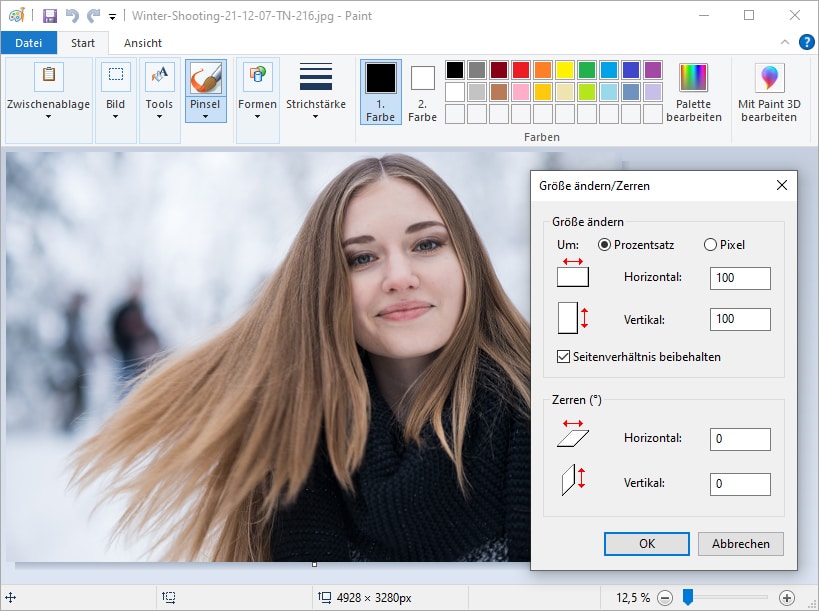
On Windows, downscaling can be done with Paint. No additional installation is required.
Process:
• open Paint and load the file
• alternatively right click the file and open with Paint
• go to Image and select Resize
• enter a new value for Horizontal or Vertical
• percent or pixels
• with Keep aspect ratio enabled, one value is sufficient
• confirm with OK
• save the file
• ideally via Save as to avoid overwriting the original
Limitation:
• Paint does not offer selectable JPEG quality levels
• for stronger compression, additional software or online services are needed
Reducing multiple images at once
Reducing many files in one run is done via batch processing.
The most efficient approach is usually a shell such as Bash or PowerShell. However, command line workflows can be a barrier. A GUI based option is outlined first.
Option 1: Batch processing with IrfanView
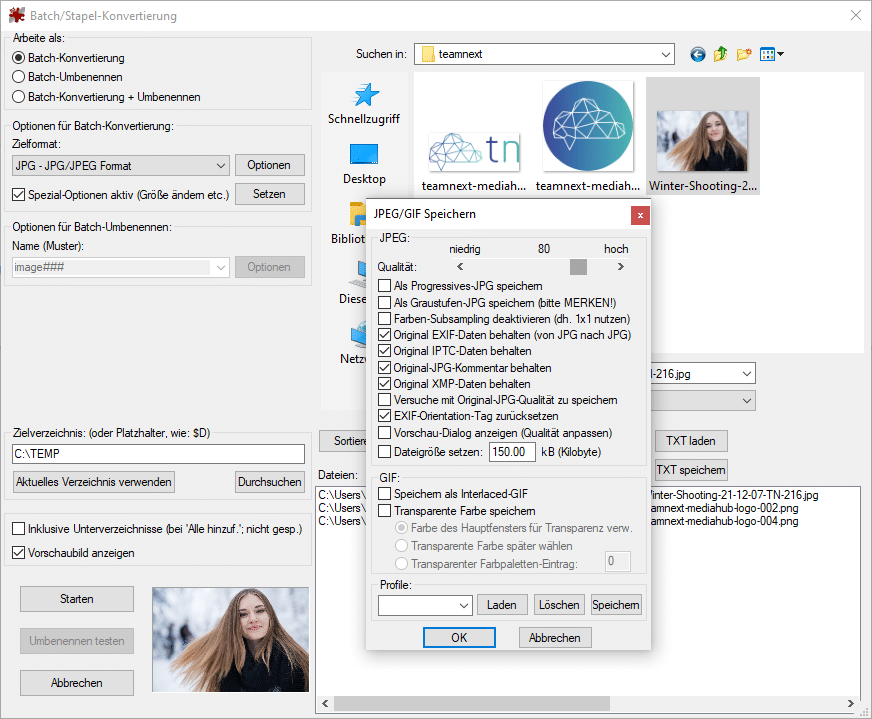
IrfanView supports batch scaling and adjustable compression through sliders and settings.
Menu path:
• File
• Batch Conversion or Rename
JPEG quality:
• up to 100 levels
Useful option:
• Set file size
• each file is recalculated to match a target size
To combine with scaling:
• enable Use advanced options
• define the resize operation
Notes:
• IrfanView and XnView are often free for private and educational use
• commercial use in companies typically requires a license
• the interface is functional but not very intuitive
Option 2: Batch processing via shell command
For advanced users
ImageMagick can handle large batches efficiently. Two example commands for Windows PowerShell:
Resize to 800 pixels on the longest side:
Convert using quality level 10:
Notes:
• mogrify overwrites source files
• convert creates new files
• on Bash, omit magick
ImageMagick performance is strong even for folders with hundreds of files.
Reducing images with Adobe Photoshop
Adobe Photoshop supports both scaling and compression.
Scaling:
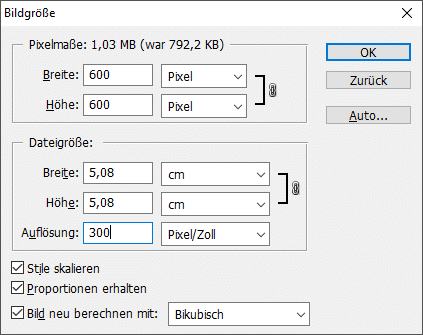
• open an image
• press Ctrl+Alt+I or use Image and Image Size
• enter pixel dimensions
• confirm with OK
JPEG compression:
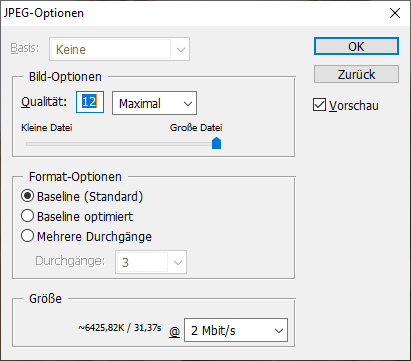
• File and Save As
• choose JPEG
• select one of 12 quality levels
Batch processing:
• File
• Scripts
• Image Processor
• set source, destination, and parameters
• run the process
Reducing images with GIMP
The free software GIMP works similarly.
Scaling:
• open the file
• Image menu
• Scale Image
• set pixel dimensions under Image Size
The Quality section controls interpolation and is not the same as JPEG quality.
Compression:
• File
• Export As
• choose JPEG
• set a quality value between 1 and 100
• default is 92
Batch processing:
• possible with plugins
• details are covered in the referenced article
Reducing images on Android
A pragmatic shortcut exists for phone photos:
• take a screenshot of the image
• crop the screenshot if needed
Why this works:
• camera resolution is usually higher than display resolution
• screenshots therefore downscale the image
Update:
• this only helps when screenshots are saved as JPEG
• newer Android versions often save screenshots as PNG
• PNG is lossless and usually inefficient for photos
Third party apps can also be used. One example is:
• Image Size, Resize Photos in Google Play
• free with ads
Reducing images on iPhone
A practical option is Apple Shortcuts.
Process:
• open Shortcuts
• add an action
• search for resize images
• choose Resize Image
• set pixel dimensions
• name the shortcut
• save it
The shortcut can then be triggered via Siri.
Third party apps are also available, for example:
• Image Size
• PicsArt
Reducing images for email
Apple Mail includes an option to resize images when attaching files. It provides size choices:
• small
• medium
• large
• actual size
On Windows or Android, the process depends on the tools used. A practical alternative is sending a download link, for example via WeTransfer.
Reducing images online
Online tools are designed for simple workflows.
Examples:
• iloveimg.com
• downscale or compress
• batch processing up to 30 files
• compressjpeg.com
• JPEG compression only
• up to 20 files per run
Reducing PNG images online
PNG is already compressed but lossless. Photo like PNG files can still be several megabytes.
tinypng.com offers lossy compression by analyzing images and rewriting them with reduced color information. Significant savings are often possible without a visible difference.
Downsides of free online services
Free online tools come with a core risk. Uploading transfers image data and metadata to third party servers.
Key concerns:
• unclear operators and unclear data handling
• deletion claims are hard to verify
• metadata may include sensitive information such as GPS coordinates
• uploads can create data protection risks