What you need to know about the HEIC format
By teamnext Editorial Team
A clarification first. The title of this article is not entirely precise. The topic is the HEIF format. HEIC is one of its file extensions.
HEIF and HEIC explained
HEIF stands for High Efficiency Image File Format. It is a modern container format for images and image sequences. The current specification was released in 2015.
Since 2017, HEIF has been the default photo format on Apple operating systems macOS and iOS. Due to the widespread use of iPhones, the format quickly gained relevance and became a serious alternative to JPEG.
HEIC or HEIF?
Files based on the HEIF format can use different extensions. The most common ones are:
• .heic
• .heif
Both indicate the same container format. Additional extensions exist but are rarely used.
The .heic extension signals the use of the HEVC compression standard. HEVC was originally developed for video compression and is the default codec on Apple devices.
HEVC stands for High Efficiency Video Coding.
Seven advantages of HEIF compared to JPEG
HEIF provides several technical benefits over JPEG. The most relevant ones are listed below:
• higher image quality at equal or smaller file size when using HEVC
• support for multiple images per file including sequences and animations
• ability to embed audio data
• higher color depth, for example HDR with 10 bits per color channel
• theoretical support for up to 16 bits per color channel
• transparency via alpha channel similar to PNG
• support for depth maps used for effects such as digital bokeh
• flexible codec usage including lossless compression
• lossless editing via derived images for rotation, cropping and compositing
The main drawback of HEIF is limited compatibility with older software and devices. As a result, HEIC files are often converted to JPEG.
Converting HEIC to JPG
Converting single files
Windows
From Windows 10 Update 1809 onward, HEIF is supported natively. HEIC files can be opened with Photos or Paint and saved as JPG using Save as.
macOS
From macOS High Sierra onward, HEIC and HEIF files can be opened with Preview. JPEG can be selected as the export format via File and Export.
This approach is suitable for occasional single file conversions.
Important notes on conversion
• Converting HEIC files may result in quality loss. Original files should be retained.
• Online converters upload images to external servers and expose metadata.
Converting multiple HEIC files at once
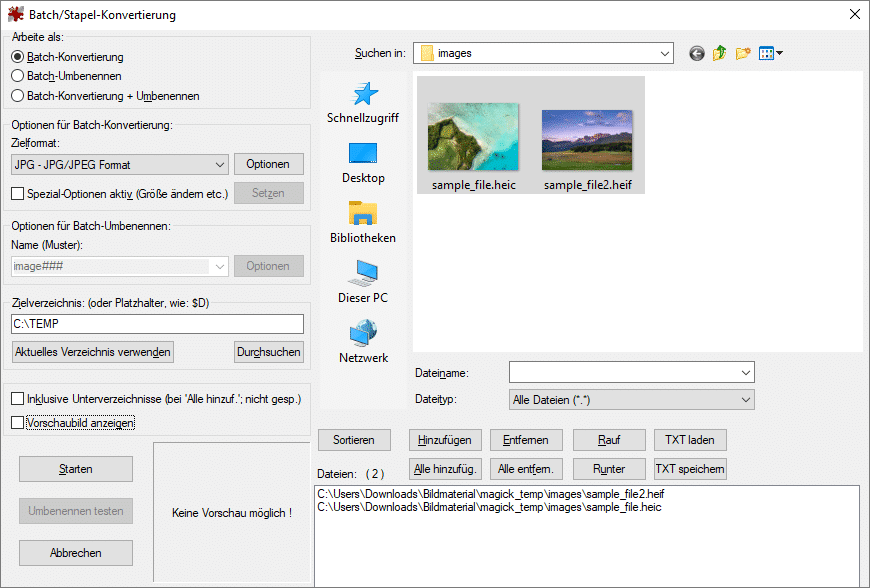
Option 1: Batch conversion with IrfanView
IrfanView is free for non commercial use and supports batch processing via a graphical interface.
Process:
• File menu
• Batch Conversion or Rename
• Select source files via file manager
• Define target folder
Screenshot from IrfanView on Windows
The Set file size option is particularly useful when converting to JPEG.
Option 2: Batch conversion via shell command
This option is intended for advanced users and relies on ImageMagick.
Example using Windows PowerShell:
With quality control:
The quality parameter ranges from 1 to 100. Values between 80 and 90 are commonly used.
Note:
• When using Bash, omit magick
ImageMagick offers excellent performance but is primarily suited for experts.
Software for editing HEIC files
Many applications now support editing HEIC and HEIF files.
Basic editing:
• Microsoft Paint from Windows 10 Update 1809
Professional tools:
• Adobe Photoshop
• Adobe Lightroom
• Affinity Photo
• Corel PaintShop Pro
• Gimp
• Krita
Summary
HEIF is a modern image format primarily driven by Apple devices. It offers technical advantages over JPEG, particularly in image quality and feature set.
Despite increasing support, HEIC files are frequently converted to JPEG. The established standard remains deeply embedded in existing workflows and systems.